

Cosmicore LLC
LunaLog
Your personal cycle calendar, planner, and journal. Track your cycle, plan your life, and write freely — all in one beautiful app.
1. Welcome to LunaLog
LunaLog is a personal cycle calendar, planner, and journal designed for women who want to understand their bodies, plan their lives around their natural rhythms, and keep a meaningful journal — all in one place.
What LunaLog Does
📅 Calendar & Planner
Full monthly calendar with color-coded notes, holidays, appointments, cycle phases, and full moons. Navigate 100+ years.
🩸 Cycle Tracking
Log periods, predict future cycles, track all four phases, and get smarter predictions as you add more data.
📖 Journal
Write daily entries with tags, mood, and word count. Go fullscreen for distraction-free writing. Export to DOCX.
🌙 Full Moons
Every full moon is marked on the calendar for 100 years. See the moon’s connection to your cycle.
🖨 Print & PDF
Print monthly calendars or journal entries to various planner sizes. Export calendars as PDF.
🔒 Private & Offline
All data stays on your computer. No internet required. No accounts. No cloud. Just you.
Tip: LunaLog works on Windows, macOS, and Linux. No internet connection is ever required.
2. Installation
Windows
- Double-click the LunaLog Setup.exe file you downloaded from Etsy
- Follow the installer prompts — choose your install location or accept the default
- Click Install and wait for it to complete
- LunaLog will appear on your Desktop and in your Start Menu
- Double-click the LunaLog icon to launch
Linux
- Download the LunaLog.AppImage file from Etsy
- Right-click the file → Properties → Permissions → check “Allow executing as program”
- Double-click to run, or run from terminal:
./LunaLog.AppImage
macOS
- Download the LunaLog.dmg file from Etsy
- Double-click the .dmg to mount it
- Drag LunaLog into your Applications folder
- Launch from Applications or Spotlight
Important: Keep your installer file safe. If you need to reinstall, you can re-download from your Etsy Purchases & Reviews page.
3. Getting Started
When you first open LunaLog, you’ll see the Calendar view — this is your home base.
First Steps
- Import your past periods — Go to the Cycle section in the sidebar and click “Import Past Periods.” Enter your start dates and period lengths going back as far as you can remember (at least 3–6 cycles for good predictions). The more data you enter, the better LunaLog’s predictions become.
- Explore the calendar — Click any day to add notes, appointments, or log how you’re feeling. Your cycle phases will automatically appear as color-coded backgrounds.
- Write your first journal entry — Click “Journal” in the sidebar, then start writing. Your entry is auto-saved as you type.
- Set up notifications — Go to Settings to configure period prediction alerts and custom reminders.
Tip: LunaLog auto-saves everything. You never need to manually save. Look for the “Saved ✓” indicator in the footer.
4. Calendar & Planner
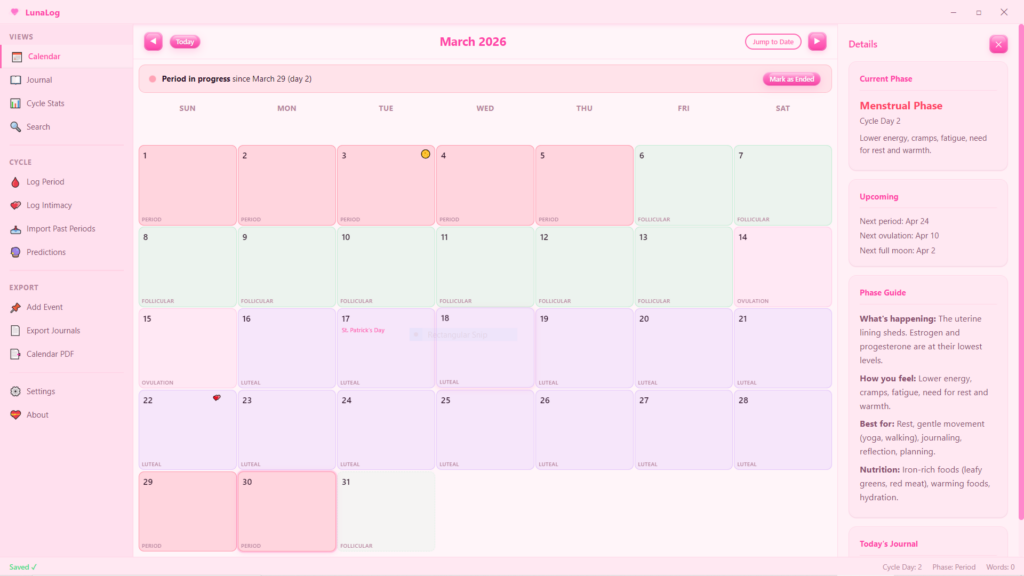
The calendar is LunaLog’s main view. It shows a full month at a glance with all your data layered on top.
What You See on the Calendar
- Period days — days you’re menstruating (cool red)
- Follicular phase — rising energy days after your period (cool mint)
- Ovulation window — peak energy and fertility (sakura pink)
- Luteal phase — winding down before your next period (violet)
- 🌕 Full moons — marked with a moon icon
- 🎈 Holidays — USA and Irish public holidays auto-populated
- 📝 Your notes — custom color-coded notes, appointments, reminders
Navigating the Calendar
- Arrow buttons or ← → — move between months
- “Today” button — jump back to the current month
- “Jump to Date” — go to any specific date
- The calendar is accurate for any year — navigate from 1925 to 2125+ with full moons, holidays, and cycle data
Adding Notes & Appointments
- Click any day on the calendar
- In the day detail popover, click “Add Note”
- Type your note (appointment, reminder, holiday, anything)
- Choose a color for the note — this determines how it appears on the calendar
- Click Save — the note appears on that calendar day
Tip: Use different colors to categorize your notes at a glance. For example: blue for appointments, green for exercise, pink for personal.
5. Cycle Tracking
Importing Past Period Data
To get accurate predictions, import as much historical data as you can:
- Go to Import Past Periods in the sidebar
- For each past period, enter the start date and length in days
- Click + Add Another to add more rows
- Click Import All to save them all at once
- LunaLog immediately recalculates your predictions with each import
The more data you provide, the better LunaLog predicts. With 3 cycles, you get basic predictions. With 6+ cycles, predictions become highly personalized. LunaLog uses a rolling average of your last 6 cycles to account for natural variation.
How Predictions Work
LunaLog calculates:
- Average cycle length — the number of days from the start of one period to the start of the next
- Average period length — how many days your period typically lasts
- Predicted next period — based on your rolling average
- Predicted ovulation — typically 14 days before your predicted next period
- Phase windows — follicular, ovulation, and luteal phase date ranges
Predictions update automatically every time you log a new period. When your period comes earlier or later than predicted, simply log it and the calendar will immediately adjust to reflect reality.
Logging a Period
Click Log Period in the sidebar. You’ll see two tabs:
My Period Started (current period)
Use this when your period just began. Enter the start date — no length needed. LunaLog marks it as ongoing and shows:
- A pulsing banner above the calendar: “Period in progress since [date]”
- Your actual period days in solid red on the calendar
When your period ends, click Mark as Ended (in the banner or Cycle Stats). LunaLog calculates the length automatically.
Log Past Period (completed period)
Use this for periods that have already ended. Enter the start date and how many days it lasted. This is also how Import Past Periods works.
Predicted vs. Actual on the Calendar
LunaLog visually distinguishes between data you’ve logged and estimates it’s making:
- Solid borders & backgrounds — actual logged period days and confirmed phases
- Dashed borders & striped backgrounds — predicted future periods and estimated phases
When you click a day, the detail popup shows (predicted) next to any estimated phase. When you log your actual period, the predicted dates disappear and the real ones take their place.
Editing a Period
In Cycle Stats, each period in your history has:
- ✎ (edit) — change the period length
- ✕ (delete) — remove the period entry
The calendar and all predictions update instantly when you edit or delete a period.
Cycle Statistics
The Cycle Stats panel shows:
- Average cycle length
- Average period length
- Shortest and longest cycle lengths (days between period starts — not period duration)
- Total periods tracked
- Current cycle day
- Days until next predicted period
6. Phases & Education
LunaLog tracks the four medically recognized phases of the menstrual cycle. The education panel in the right sidebar explains what’s happening in your body during each phase.
Menstrual Phase (Days 1–5 approx.)
- What’s happening: The uterine lining sheds. Estrogen and progesterone are at their lowest.
- How you may feel: Lower energy, cramps, fatigue, need for rest
- Best for: Rest, reflection, gentle movement, planning, journaling
Follicular Phase (Days 1–13 approx.)
- What’s happening: Estrogen rises. Follicles develop in the ovaries. Energy builds.
- How you may feel: Increasing energy, optimism, creativity, sociability
- Best for: New projects, brainstorming, socializing, challenging workouts
Note: The follicular phase overlaps with menstruation — it begins on day 1 of your period and continues until ovulation.
Ovulation (Days 13–15 approx.)
- What’s happening: An egg is released. Estrogen peaks. Luteinizing hormone surges.
- How you may feel: Peak energy, confidence, heightened senses, sociability
- Best for: Important meetings, presentations, social events, high-intensity workouts
Luteal Phase (Days 15–28 approx.)
- What’s happening: Progesterone rises then drops. The body prepares for menstruation.
- How you may feel: Calm focus early on, then PMS symptoms may appear (bloating, mood changes, cravings)
- Best for: Detail work, organizing, nesting, completing projects, gentler exercise
Why only 4 phases? These are the only four medically recognized phases of the menstrual cycle. While some sources break them into more sub-phases, the medical and endocrinological consensus recognizes these four distinct hormonal stages.
7. Full Moons
Every full moon is displayed on the calendar with a 🌕 icon.
Accuracy & Range
Full moon dates are calculated using the Jean Meeus astronomical algorithm (from Astronomical Algorithms), which models the Moon’s orbital mechanics. This is the same algorithm used by observatories and planetarium software.
- 1925–2125 — accurate to within 1–2 minutes of the actual full moon
- Beyond that range — still accurate to within hours for several centuries in both directions
- LunaLog can display full moons for any year you can navigate to
Calendar & Holiday Accuracy
- Calendar dates — accurate for any Gregorian calendar year (day-of-week, leap years, etc. are pure math)
- USA & Irish holidays — calculated algorithmically (including Easter) and accurate for any year
- PDF export — you can export calendars from 1925 through 2125 with full moons, holidays, and your cycle data
Why Full Moons?
The average menstrual cycle is approximately 29.5 days — remarkably close to the 29.53-day lunar cycle. While modern science hasn’t proven a direct causal link, many women notice patterns between their cycles and the moon. LunaLog lets you see both at a glance so you can observe any personal correlations.
Tip: Over time, look at where your period falls relative to the full moon. Some women menstruate near the full moon (“red moon cycle”), others near the new moon (“white moon cycle”). It’s fascinating to track!
8. Journal
LunaLog includes a full-featured journal for daily writing, reflection, and personal tracking.
Writing an Entry
- Click Journal in the sidebar
- Today’s date and time are automatically set
- Start typing in the editor area
- Your entry auto-saves as you write
Multiple Entries Per Day
You can create multiple journal entries on the same day, each with its own time stamp and tags. This is perfect for morning reflections, afternoon check-ins, and evening gratitude:
- Click New Entry in the journal toolbar
- A fresh entry is created for today with the current time
- Write and tag it independently from other entries
All entries appear in the sidebar list with their date, time, and tags.
Entry Features
- Date & time heading — each entry shows the full date and time (e.g., “Monday, March 30, 2026 • 11:45 AM”)
- Word count — live word count displayed per entry
- Tags — add multiple tags to categorize entries (e.g., #gratitude #workout #period). Tags auto-save.
- Undo / Redo — full history stack with Ctrl+Z and Ctrl+R
Focus Mode (Distraction-Free Writing)
Click the “Focus” button in the journal toolbar to enter a full-screen, distraction-free writing overlay. The entire app fades away — only your words remain.
- Clean canvas with nothing but your text and a live word count
- The top bar shows the date and word count
- Everything auto-saves continuously while you write in Focus Mode
- Press Esc to exit and return to the main app
- Your selected journal font carries over into Focus Mode
Browsing Past Entries
Your journal entries are listed chronologically in the sidebar panel, showing date, time, tags, and a preview. Click any entry to load it. Use the search bar to filter by content, tag, or date.
9. Exporting
Export Journals to DOCX
LunaLog exports journal entries as .docx files that are compatible with Microsoft Word, Google Docs, and other word processors.
Click Export Journals in the sidebar to open the export modal. Choose an export mode:
- All Entries (Chronological) — exports every journal entry in date order
- Filter by Tag — enter a tag to export only matching entries
- Date Range — export entries within a specific date range
Each exported entry includes:
- Heading 1 styled date (e.g., “Wednesday, August 5th, 2034”)
- Body text in Normal paragraph style
- Tags listed below the heading
- Word count per entry
- Grand total word count at the end of the document
Export Calendar as PDF
Export any range of months as a beautifully formatted, printable PDF with one month per page:
- Click Calendar PDF in the sidebar
- Select a from month and to month (you can export years into the future)
- Choose your paper size (US Letter, A4, or A5)
- Click Export PDF — each month renders as a full-page calendar grid with phases, holidays, full moons, and your notes
Predicted phases are marked with an asterisk (*) in the PDF. Actual logged phases show at full opacity.
Tip: Once you export a PDF, open it with your system’s PDF viewer and print from there for the best results.
10. Notifications
LunaLog can send you desktop notifications with a gentle sparkle chime sound.
Built-in Notifications
- Period prediction — “Your period is predicted in 3 days” (configurable: 1, 2, 3, 5, or 7 days before)
- Ovulation prediction — alerts the day before and on your estimated ovulation day (toggle on/off in Settings)
- Full moon — optional alert on full moon days
- Custom event reminders — per-event notifications: same day, 1 day, 3 days, or 1 week before (supports repeating events)
Custom Events with Reminders
You can add custom events to the calendar with optional notification reminders:
- Click Add Event in the sidebar, or click any calendar day and then 📅 Add Event
- Enter the event name, date, and choose a color
- Optionally set it to repeat (yearly, monthly, or weekly)
- Set a notification reminder (same day, 1 day, 3 days, or 1 week before)
- Click Save Event
Events appear on the calendar with their chosen color. Use them for birthdays, appointments, doctor visits, or anything you want to track.
Editing & Deleting Events
Click any calendar day to see events for that day. Each event has ✎ Edit and ✕ Delete buttons so you can update or remove them at any time.
Disabling Notifications
All notifications can be individually enabled or disabled. You can also turn off all notifications at once with the master toggle in Settings → Notifications.
Tip: The notification sound is a gentle sparkle chime. It plays when any notification is triggered. You can mute the sound in Settings while still receiving visual notifications.
11. Themes
LunaLog includes multiple color themes. Switch themes in Settings → Appearance.
- Bubblegum Pink — default theme, warm and personal
- Dark Pink — dark mode with pink accents
- Ice Blue — cool and calming
- Violet — creative and luxurious
- Black & White — clean monochrome
All themes use the Cosmicore Jelly Glass design system — glossy translucent buttons, frosted glass panels, and cool-toned colors.
12. Calendar Display Settings
You have full control over what appears on the calendar. Every feature can be individually toggled on or off in Settings → Calendar Display. All features are enabled by default.
- Show Holidays — toggle USA & Irish holidays on/off
- Show Full Moons — toggle full moon icons on/off
- Show Cycle Predictions — toggle predicted phase colors and labels on/off (actual logged period days always show)
- Show Intimacy — toggle intimacy log icons on/off
- Show Custom Events — toggle custom events on/off
Turning off a feature only hides it from the calendar view — your data is never deleted. Turn it back on anytime to see it again.
Tip: If your calendar feels too cluttered, turn off holidays or predictions to simplify the view. You can always re-enable them later.
13. Fonts
LunaLog includes a curated selection of legally free fonts that are safe for publishing novels, journals, and other written works. All fonts are licensed under the SIL Open Font License (OFL) or are in the public domain.
- Crimson Pro — elegant serif, ideal for literary writing
- Libre Baskerville — classic book serif
- EB Garamond — traditional Garamond for refined manuscripts
- Merriweather — highly readable serif for long-form text
- Playfair Display — decorative serif for headings and titles
- Lato — clean modern sans-serif
- Source Sans 3 — professional sans-serif for body text
You can select your preferred journal font in Settings → Appearance → Journal Font. The selected font is also used in DOCX exports.
All fonts are embedded in the app. No internet connection is needed. You can use any of these fonts in published works (novels, journals, zines, etc.) without purchasing a license.
14. Data & Backups
Where Your Data Lives
All LunaLog data is stored locally on your computer. Nothing is sent to the internet. No account is required.
Auto-Save
LunaLog auto-saves everything — journal entries, calendar notes, cycle data, and settings. The footer shows “Saved ✓” whenever data is written.
Backup & Restore
- Backup: Go to Settings → Data → Create Backup. This saves a single .json file containing all your data.
- Restore: Go to Settings → Data → Restore from Backup. Select your backup file and all data is restored.
Import & Export
- Import past periods — manual entry via the Import Past Periods form
- Export journals — DOCX format (Atticus-compatible)
- Export calendars — PDF format
- Export all data — JSON backup file
Back up your data regularly. Cosmicore LLC is not responsible for data loss. Keep backup copies on an external drive or cloud storage for safety.
15. Privacy & PIN Lock
LunaLog includes an optional PIN lock that protects your journal and cycle data from anyone who uses your computer. When enabled, LunaLog will ask for your PIN every time the app opens.
Setting Up a PIN
- Go to Settings → Privacy & Lock
- Toggle “App PIN Lock” on
- Enter a 4–8 digit number in the PIN field
- Click Save PIN
From now on, LunaLog will show a lock screen when it opens. Enter your PIN to access the app.
Tip: Choose a PIN you will remember but that others won’t guess. Do not use your birthday or a PIN you use elsewhere. Write it in a safe place.
Changing Your PIN
To change your PIN, go to Settings → Privacy & Lock, enter a new PIN, and click Save PIN. The old PIN is immediately replaced.
Removing the PIN Lock
Toggle “App PIN Lock” off in Settings. The PIN is erased and the lock screen will no longer appear.
🔒 Forgot Your PIN? (Recovery Instructions)
If you forget your PIN, follow these steps to reset it. Your data will NOT be lost.
Windows
- Open File Explorer
- In the address bar, type exactly:
%APPDATA%\LunaLogand press Enter - Look for a file named Local Storage (it is a folder — open it)
- Inside you will find a file named something like
file__0.localstorage - Open a fresh Notepad window, then open that file with Notepad
- Use Ctrl+H (Find & Replace): find
lunalog_pin_enabledand delete the entire line containing it - Also delete the line containing
lunalog_pin_hash - Save the file, then reopen LunaLog — the lock screen will be gone
Alternative (easier) Windows method:
- Open Run (Win+R), type
%APPDATA%\LunaLog, press Enter - Delete the entire Local Storage folder
- LunaLog will reopen with no lock and no data — then restore your data from your backup file
Linux
- Open a terminal
- Navigate to:
~/.config/LunaLog/Local Storage/ - Delete or rename the
*.localstoragefile, or open it in a text editor and remove the two PIN lines - Reopen LunaLog — the lock is gone. Restore your data from backup if needed.
Always keep a current backup (Settings → Data → Create Backup) so that if you need to clear Local Storage for PIN recovery, you can restore all your data instantly.
16. Keyboard Shortcuts
| Action | Shortcut |
|---|---|
| Undo | Ctrl+Z |
| Redo | Ctrl+R |
| Previous month | ← (in calendar view) |
| Next month | → (in calendar view) |
| Go to today | Ctrl+T |
| Enter Focus Mode | Click Focus in journal toolbar |
| Exit Focus Mode | Esc |
| Quick search | Ctrl+F |
On macOS, replace Ctrl with Cmd.
17. FAQ
Q: Does LunaLog require an internet connection?
No. LunaLog is a fully offline desktop application. All data is stored locally. All fonts are embedded. No internet is ever needed.
Q: Is my data private?
Yes. Your data never leaves your computer. Cosmicore LLC does not collect, access, or transmit any of your data. See our Terms of Use for full details.
Q: How accurate are the cycle predictions?
Predictions are based on a rolling average of your last 6 cycles. The more data you provide, the more accurate they become. LunaLog is a tracking tool, not a medical device — always consult a healthcare provider for medical decisions.
Q: Can I use the fonts in my published books?
Yes. All fonts included in LunaLog are licensed under the SIL Open Font License (OFL) or are public domain. You can use them freely in any published work.
Q: Can I install LunaLog on multiple computers?
Yes. Your single-user license allows you to install LunaLog on all devices you personally own and use. You may not share the installer with others.
Q: How do I transfer my data to a new computer?
Use the Backup feature (Settings → Data → Create Backup) to export a .json file. Copy that file to your new computer and use Restore to import it.
Q: I forgot my PIN. How do I get back into LunaLog?
See Section 15: Privacy & PIN Lock → Forgot Your PIN? for full step-by-step recovery instructions for Windows and Linux. Your data is safe — you just need to clear the stored PIN from LunaLog’s local app data folder. Always keep a backup so you can restore everything in seconds.
Q: What if I lose my installer file?
You can re-download from your Etsy Purchases & Reviews page at any time.
Q: Will there be updates?
Updates may be released at Cosmicore LLC’s discretion. If an update is available, a new version will be uploaded to the Etsy listing. Check your Purchases & Reviews page to re-download the latest version.
Q: Can I export my journals as a book?
Yes! Export your journals to .docx with Heading 1 date headings. The exported file is compatible with any word processor or book formatting tool.
18. Support & Contact
Cosmicore LLC
Website: cosmicore.net
Email: hello@cosmicore.net
Support is provided on a best-effort basis. Please include your operating system and LunaLog version number when reporting issues.
© 2026 Cosmicore LLC. All rights reserved.
LunaLog is a product of Cosmicore LLC. The Cosmicore Jelly Glass design system is proprietary to Cosmicore LLC.